How to clean up your Mac
Contents
With WIWIClean
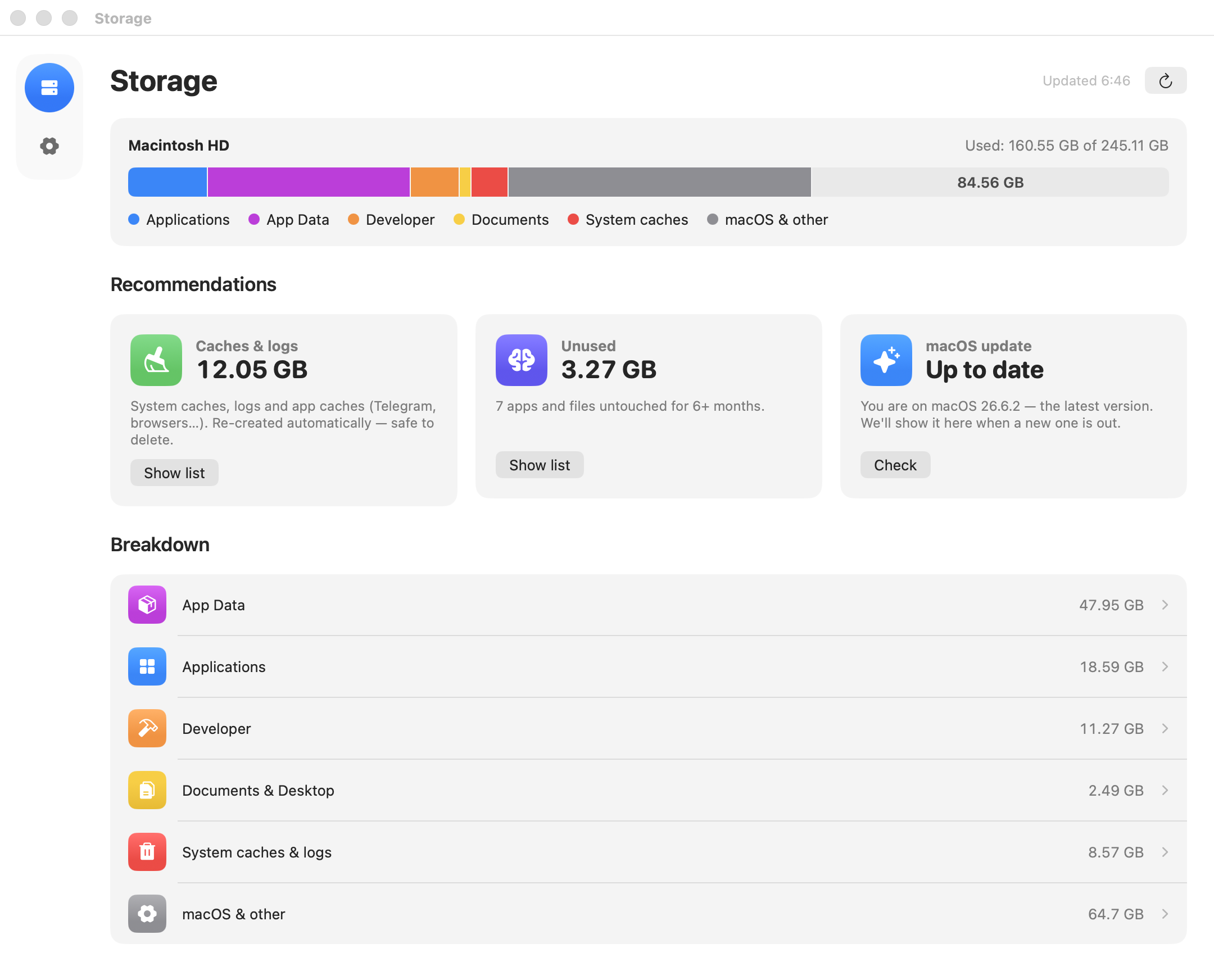
- Download and open WIWIClean. Allow Full Disk Access.
On the Caches & logs card, click Show list → Clean everything. Caches are re-created automatically.
On the Unused card, click Show list and delete apps and files you haven't opened for over 6 months.
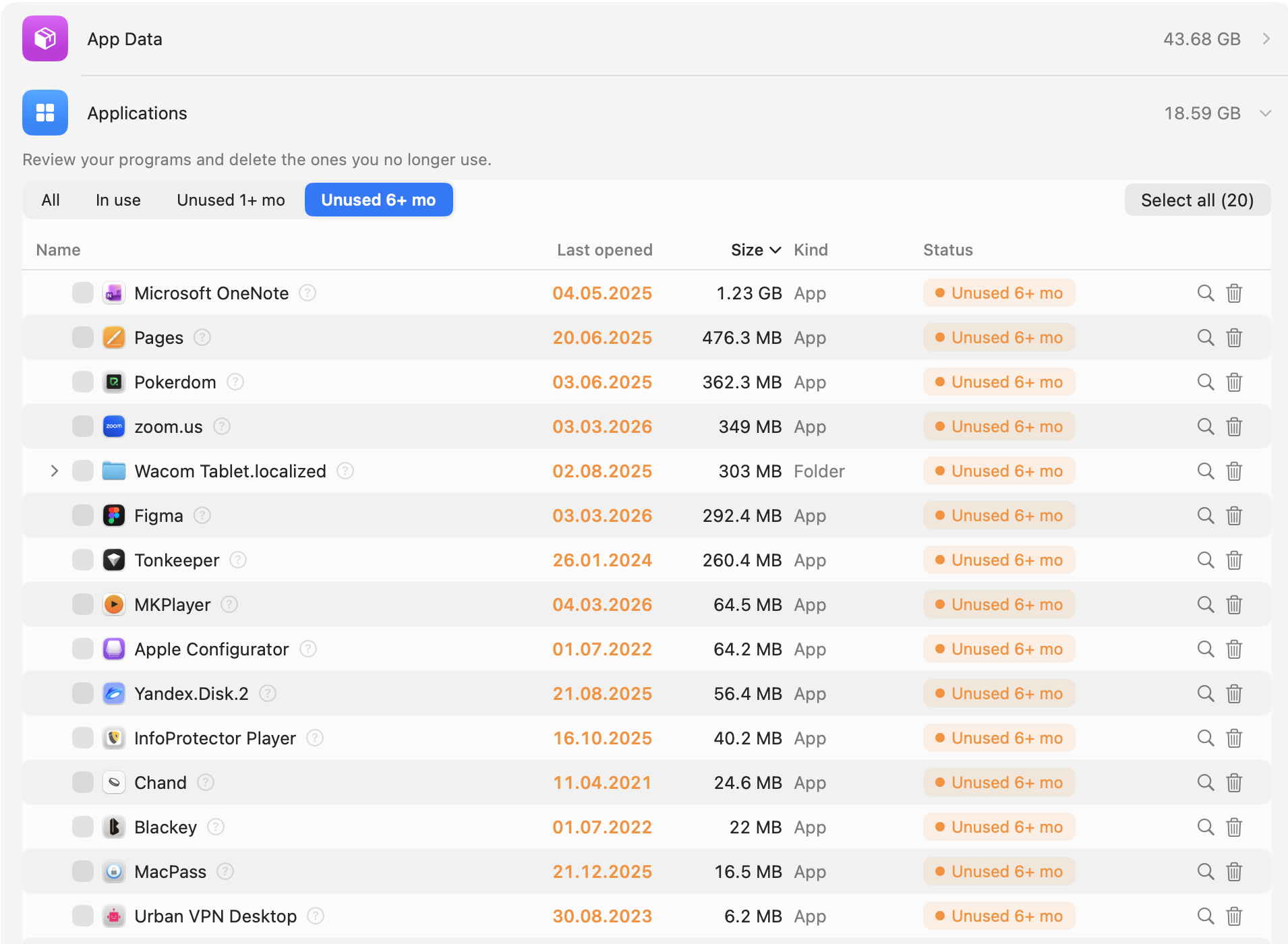
In Breakdown, open the biggest categories and delete what you don't need. Every row has a “?” that explains what happens after deletion.
Manually
- See what takes up space: Apple menu → System Settings → General → Storage.
- Open Downloads, switch to List view (⌘2), sort by size and delete old installers, archives and videos.
- Find large files: in Storage, click ⓘ next to Documents → Large Files.
- Remove apps you don't use — how to uninstall apps completely.
- Clear the cache — how to clear cache on Mac.
- If System Data takes the most space — how to clear System Data.
- Empty the Trash: right-click the Trash in the Dock → Empty Trash. Space isn't freed until you do.
FAQ
How do I quickly free up space on a MacBook?
Empty the Trash, delete large files from Downloads and clear the cache. That's usually a few gigabytes in a couple of minutes.
How do I clear memory on a MacBook?
If you mean disk space — follow the steps above. RAM doesn't need clearing: macOS manages it itself; just quit heavy apps or restart your Mac.
Why isn't space freed after deleting files?
Files stay in the Trash until you empty it. Also, Storage in macOS updates its numbers with a delay.
How do I completely wipe a MacBook before selling it?
Don't delete files one by one — erase the whole Mac: System Settings → General → Transfer or Reset → Erase All Content and Settings.