How to clear System Data on Mac
Contents
With WIWIClean
- Download and open WIWIClean. Allow Full Disk Access — without it, part of System Data isn't visible.
See what it's made of: WIWIClean splits it into App Data, Developer, System caches & logs and macOS & other.
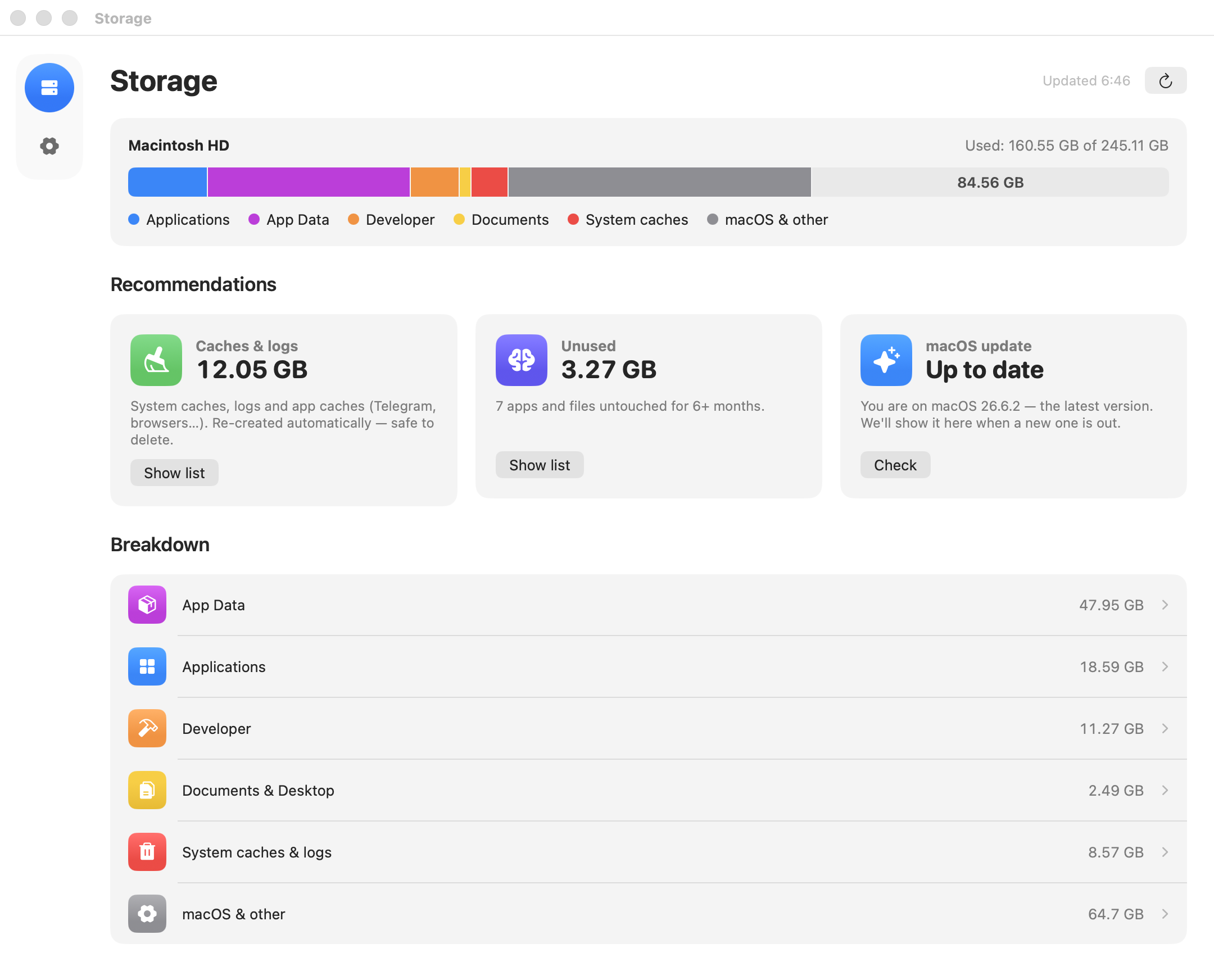
On the Caches & logs card, click Show list, then Clean everything. This is the safest part: caches are re-created automatically.
Open App Data. Clear an app's cache with the Clear button, and delete its data with the Delete button — only for apps you no longer need.
Hover over the “?” on any row — WIWIClean shows what's inside and what happens after deletion. macOS files are shown but can't be deleted.
Manually
Check how much System Data takes: Apple menu → System Settings → General → Storage. There's no button to clear it.
- Clear app caches — how to clear cache on Mac.
- Remove leftovers of old apps in
~/Library— how to uninstall apps completely. - Restart your Mac: macOS removes some temporary files on restart.
FAQ
What is System Data on a MacBook?
Everything macOS can't put into a clear category: app caches and data, logs, leftovers of deleted apps, local Time Machine snapshots, developer files.
Why does System Data take up so much space?
Apps keep piling up cache and data in service folders for years, and their files stay after the app is deleted. App data and Xcode files are usually the biggest part.
Can I delete System Data completely?
No: it also contains files macOS needs. You can remove caches, leftovers of deleted apps and developer files you don't need — usually tens of gigabytes.
Why doesn't System Data shrink after cleaning?
macOS recalculates the size with a delay. If files went to the Trash, empty it. macOS removes Time Machine snapshots itself when space is needed.